There are a number of reports available to customers with the "Asset Smart" solution.
Step 1.
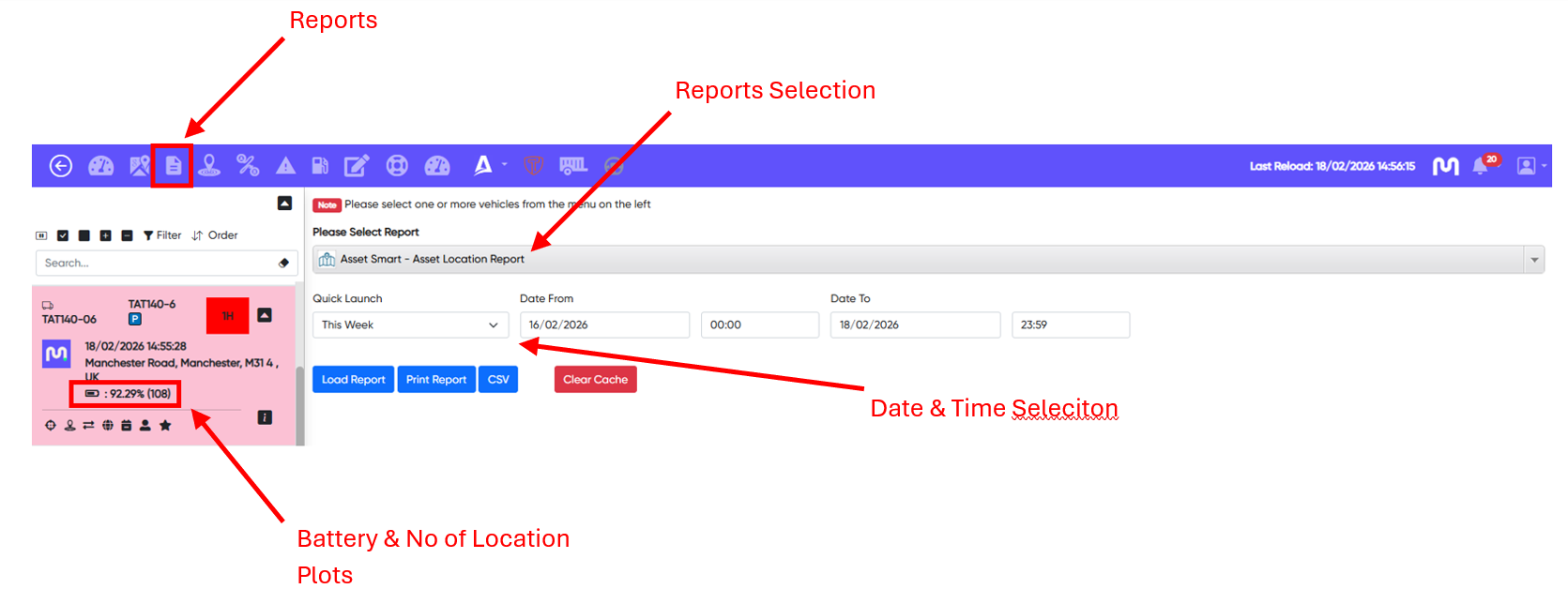
Highlight the single vehicle you wish to run the report for from the left-hand vehicle list.
Step 2.
Select the 'Reports' icon from the top menu bar.
Step 3.
Select 'Asset Smart - Asset Location Report' report from the 'Please Select Report' drop down.
Step 4.
Select the Date/Time 'From' and 'To' from the Date & Time Selection options shown below.
Step 5.
Click 'Load Report' to run the 'Asset Smart - Asset Location Report' report against your selected criteria.
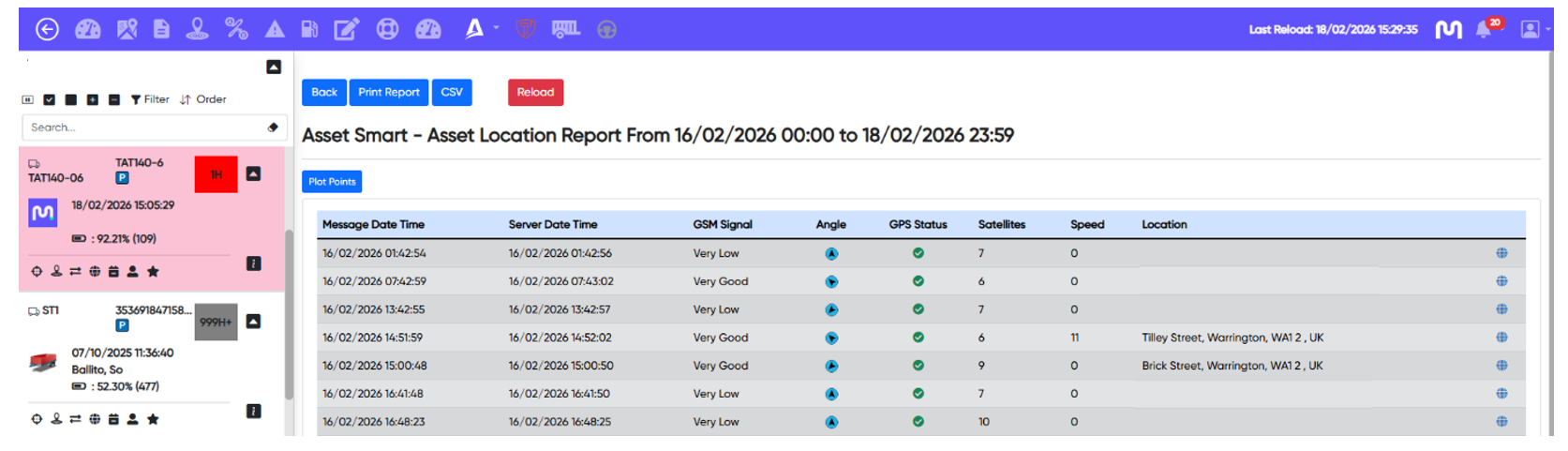
This will return a report that will give you the below headings against your asset:
- Message Date Time = Date & Time the asset box sent the location message.
- Server Date Time = Date & Time the messages are received to Motia's server/portal.
- GSM Signal = Mobile network signal at time of location update.
- Angle = Heading of the asset at time of location update.
- GPS Status = Status of the GPS signal at time of location update.
- Satellites = Number of satellites the tracking unit is connected to at time of location update.
- Speed = Speed of the Asset if in movement at time of location update.
- Location = Location of Asset at time of location update.
2. Asset Smart - Historic Asset Tracker Location Report
This report allows you to select multiple assets and define a date and time window of up to 24 hours (12 hours either side). For each asset, the report returns the nearest location plot to the selected time-frame.
All location points can be plotted on a map, showing the individual messages for each device. As these are for separate assets, the map view displays singular points only, with no line view.
To run this report
Step 1.
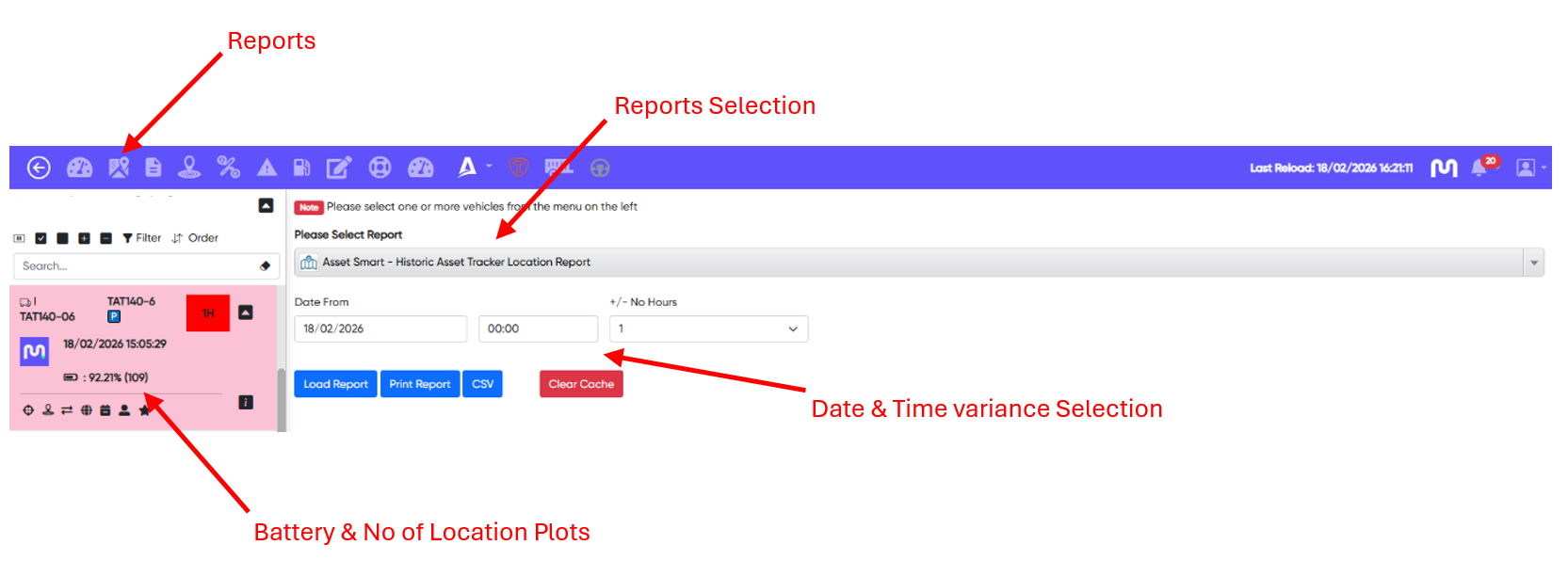
Highlight the vehicle(s) you wish to run the report for from the left-hand vehicle list.
Step 2.
Select the 'Reports' icon from the top menu bar.
Step 3.
Select 'Asset Smart - Historic Asset Tracker Location Report' report from the 'Please Select Report' drop down.
Step 4.
Select the Date/Time '+/- No Hours' from the Selection options shown below.
Step 5.
Click 'Load Report' to run the 'Asset Smart - Historic Asset Tracker Location Report' report against your selected criteria.
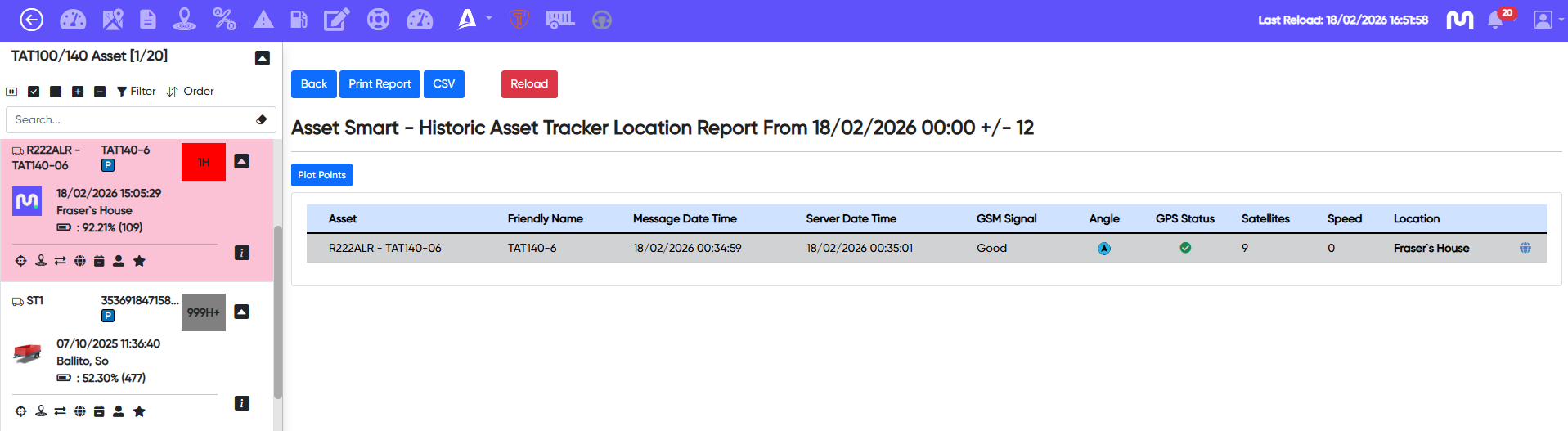
This will return a report that will give you the below headings against your asset:
- Asset = The vehicle registration.
- Friendly Name = 'Friendly' name associated to the vehicle.
- Message Date Time = Date & Time the asset box sent the location message.
- Server Date Time = Date & Time the messages are received to Motia's server/portal.
- GSM Signal = Mobile network signal at time of location update.
- Angle = Heading of the asset at time of location update.
- GPS Status = Status of the GPS signal at time of location update.
- Satellites = Number of satellites the tracking unit is connected to at time of location update.
- Speed = Speed of the Asset if in movement at time of location update.
- Location = Location of Asset at time of location update.
3. Asset Smart - Latest Location Report
This report allows you to select multiple assets and returns the latest reported location data from the point of running the report.
All location points can be plotted on a map, showing the individual messages for each device. As these are for separate assets, the map view displays singular points only, with no line view.
To run this report
Step 1.
Highlight the vehicle(s) you wish to run the report for from the left-hand vehicle list.
Step 2.
Select the 'Reports' icon from the top menu bar.
Step 3.
Select 'Asset Smart - Latest Location Report' report from the 'Please Select Report' drop down.
Step 4.
Click 'Load Report' to run the 'Asset Smart - Latest Location Report' report against your selected criteria.
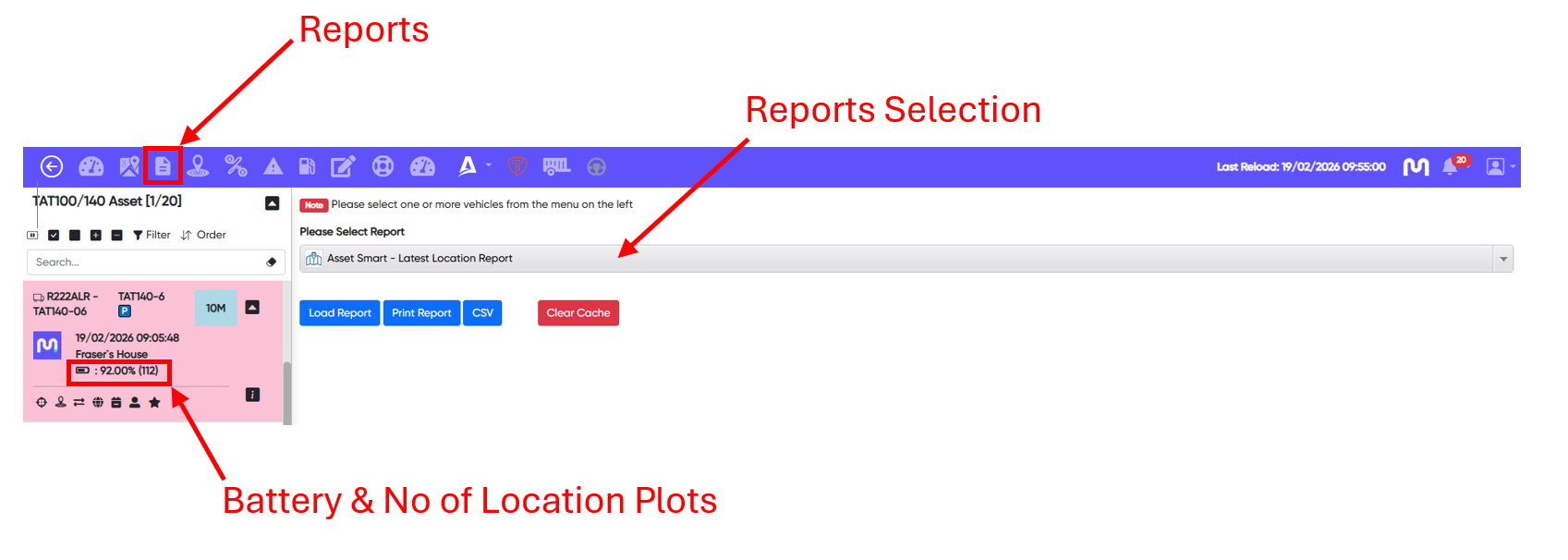
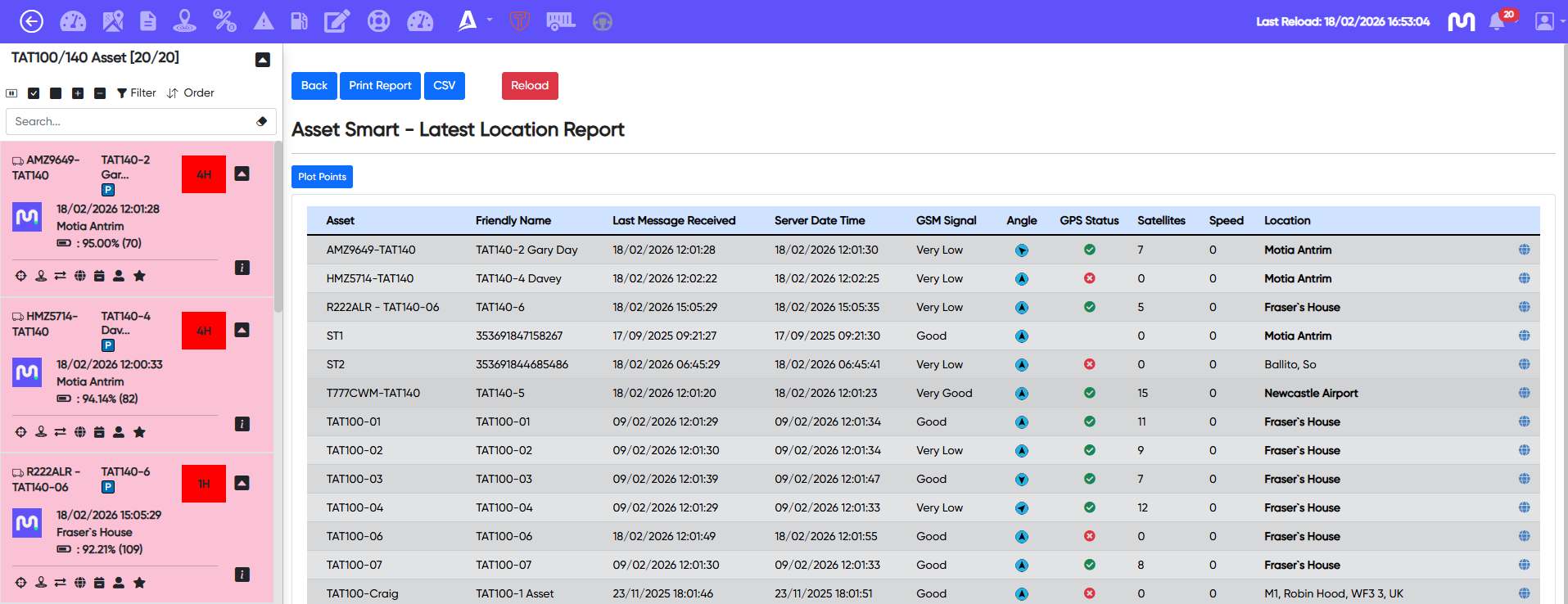
This will return a report that will give you the below headings against your asset:
- Asset = The vehicle registration.
- Friendly Name = 'Friendly' name associated to the vehicle.
- Message Date Time = Date & Time the asset box sent the location message.
- Server Date Time = Date & Time the messages are received to Motia's server/portal.
- GSM Signal = Mobile network signal at time of location update.
- Angle = Heading of the asset at time of location update.
- GPS Status = Status of the GPS signal at time of location update.
- Satellites = Number of satellites the tracking unit is connected to at time of location update.
- Speed = Speed of the Asset if in movement at time of location update.
- Location = Location of Asset at time of location update.
Was this article helpful?
That’s Great!
Thank you for your feedback
Sorry! We couldn't be helpful
Thank you for your feedback
Feedback sent
We appreciate your effort and will try to fix the article